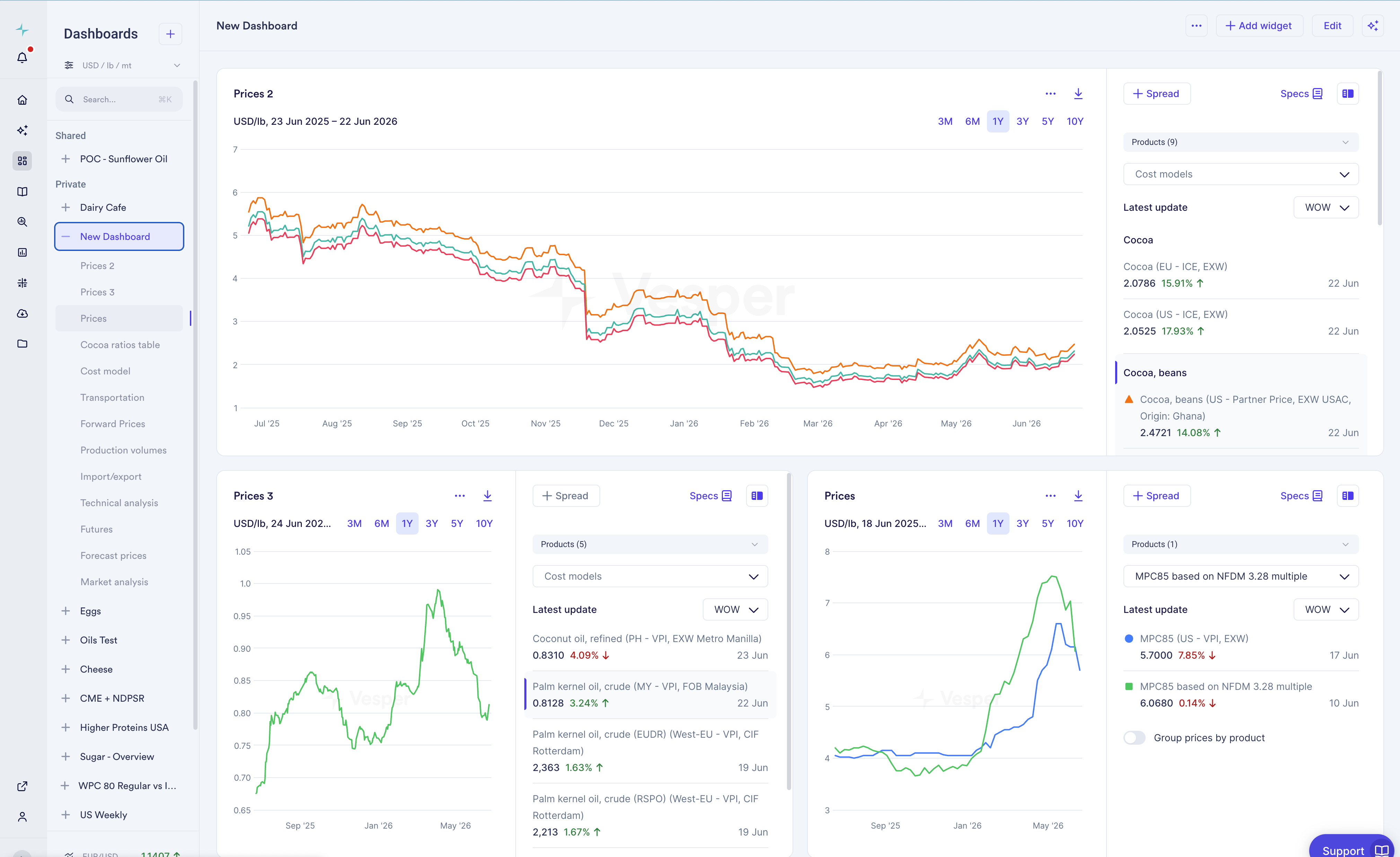

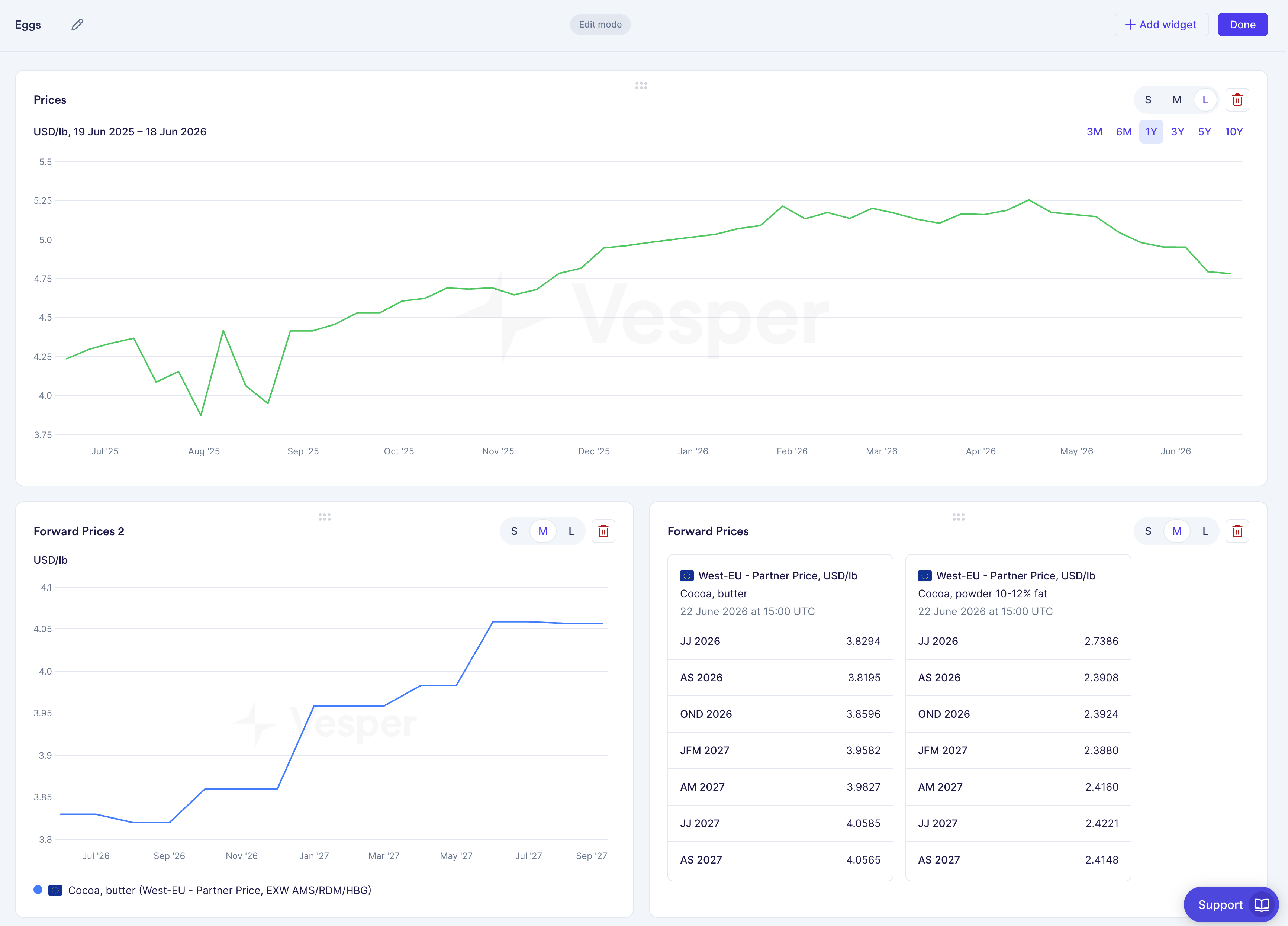
Full-width widgets are back, and you can now reorder widgets by dragging them directly on the dashboard.
What changed:
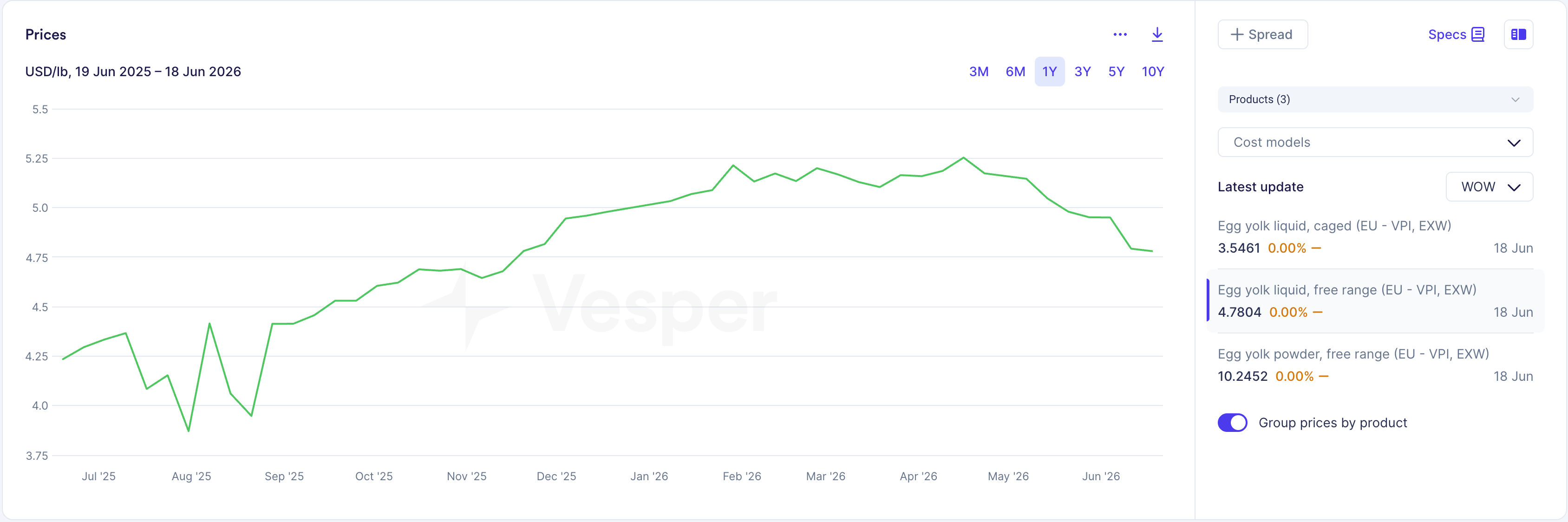
- Full-width widgets are back. The L size always spans the full width of the dashboard regardless of browser window size, so charts stay readable.
- A new Edit button in the top-right turns on edit mode.
- In edit mode each widget shows S (1/3 width), M (half width), and L (full row) size options, plus a drag handle to reorder.
- The layout adapts at smaller screen widths (S to M, M to L) to keep graphs legible.
- Drag-and-drop replaces the old edit page for reordering.
- Widget ordering is now available from the sidebar too, a quick shortcut for power users who want to arrange widgets without entering edit mode.
Why this matters: Arranging a dashboard used to mean a separate edit page. Now you resize and reorder in place, and the widgets that matter most can take the full width they need. Charts stay readable as the window shrinks instead of squeezing into an unusable size.
How to use it:
- Click Edit in the top-right of the dashboard.
- Pick S, M, or L on any widget, and use the drag handle to move it.
- Or order your widgets straight from the sidebar, without opening edit mode.
How to access: This is live for all users on the dashboard. Contact your Customer Success Manager at support@vespertool.com with any questions.