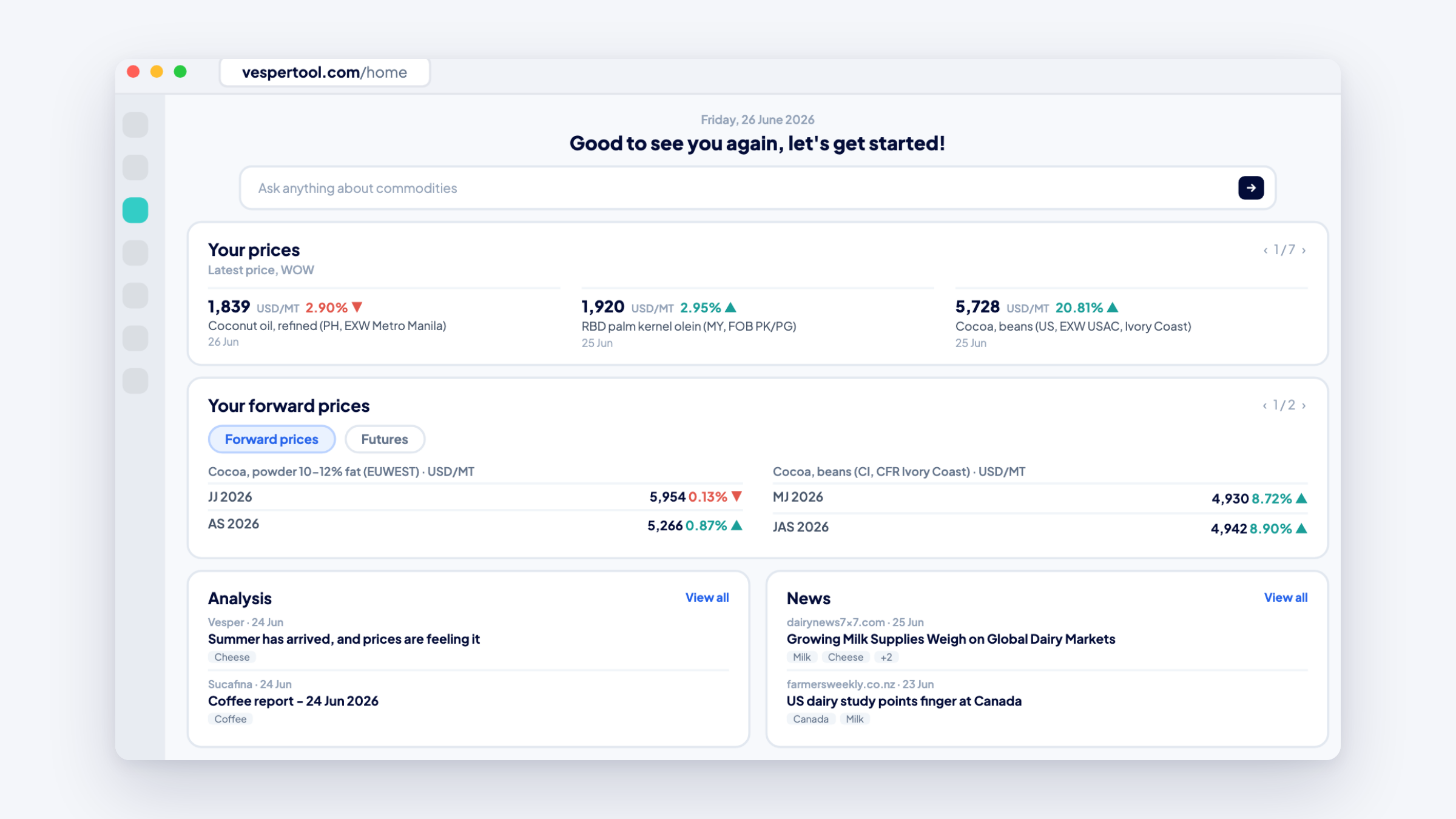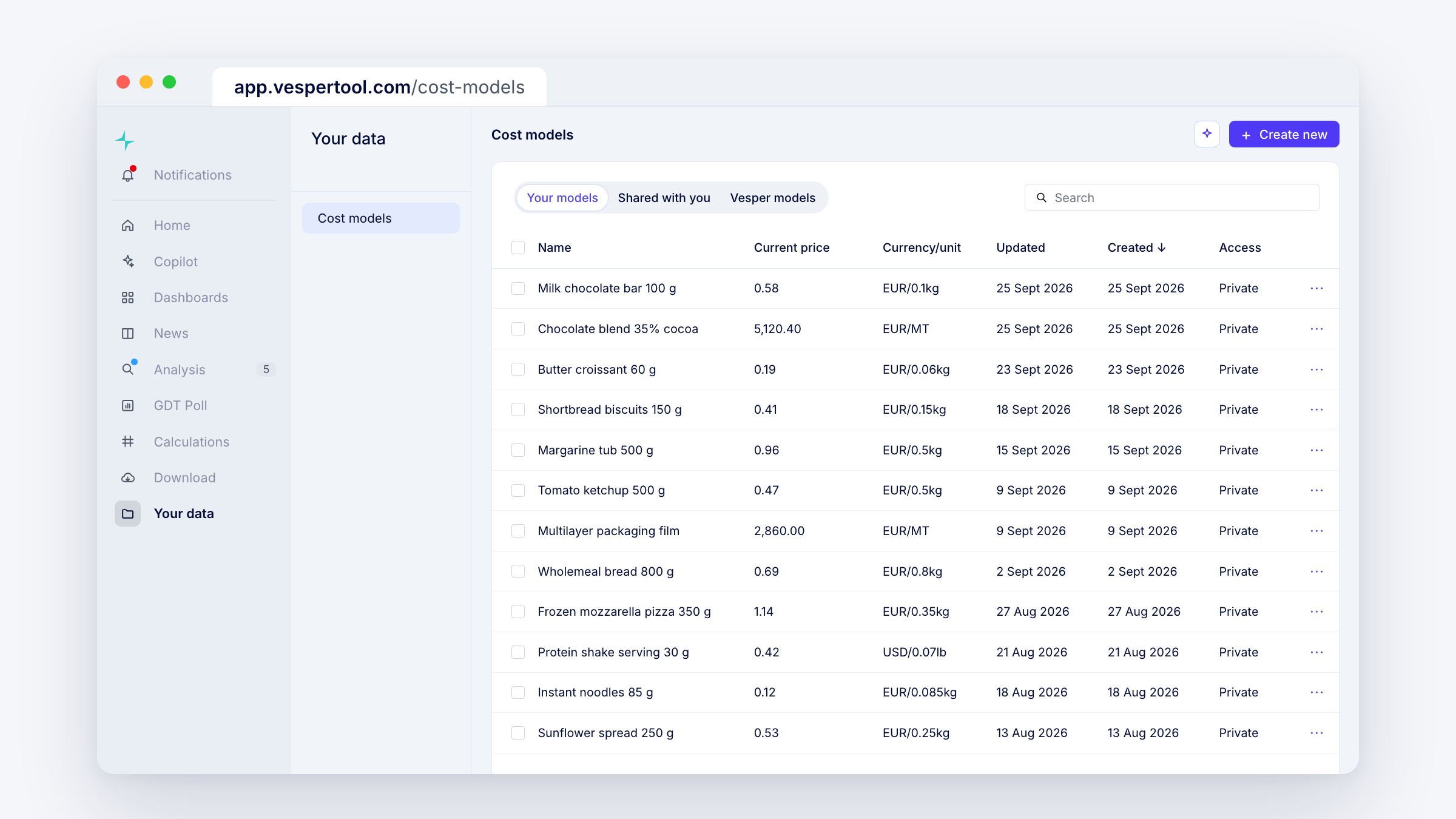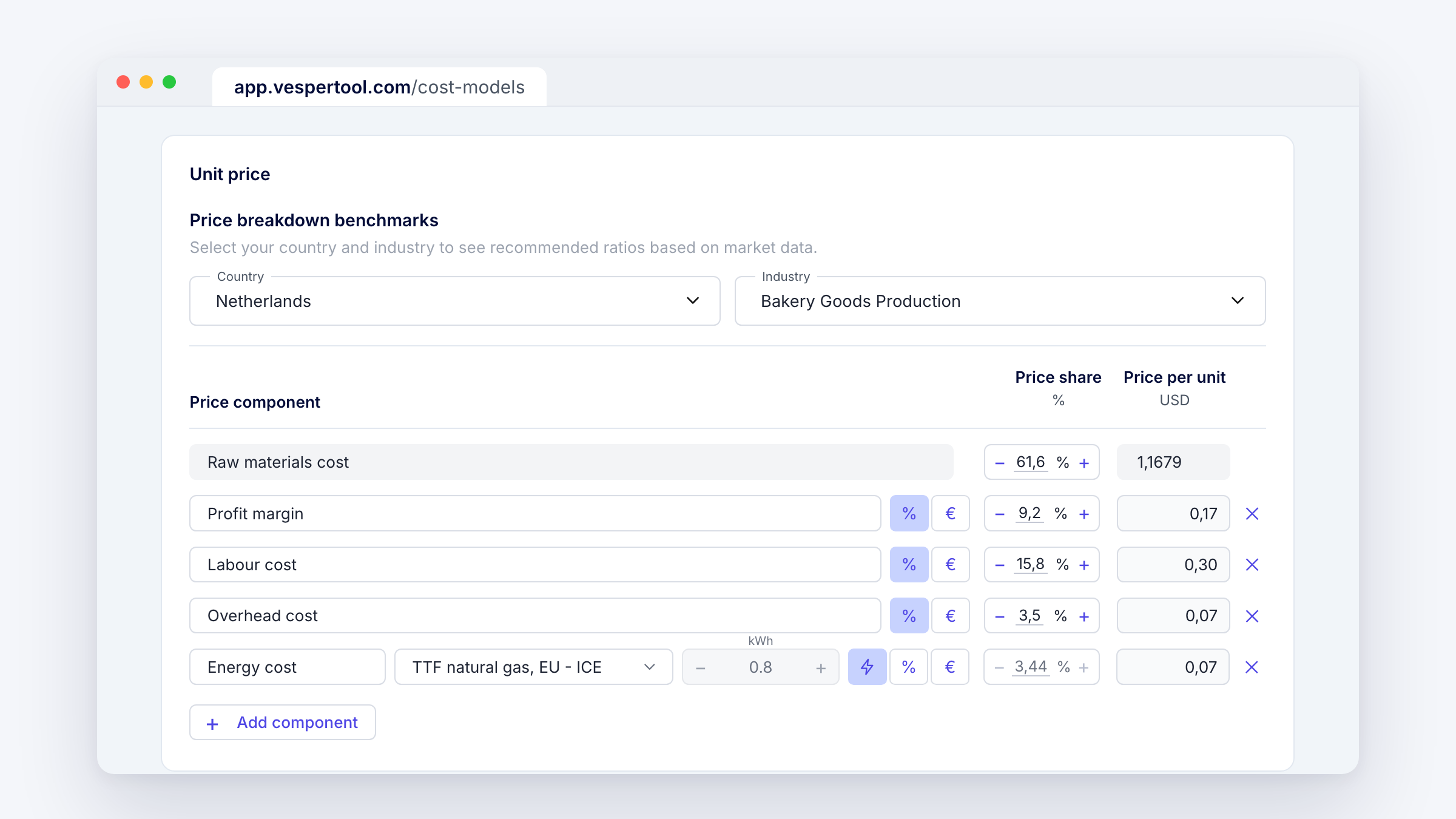
You log in to check specific prices, and some of the prices you follow most closely are your own cost models. Two changes to the Homefeed put both where you look first.
What’s new
- Add a cost model to the Your prices card from the product dropdown, next to commodities. It shows its price, change and date like a commodity, with a small icon to tell them apart.
- Click a cost model to open its price chart, with links to the dashboards where it lives. You only see cost models you have access to.
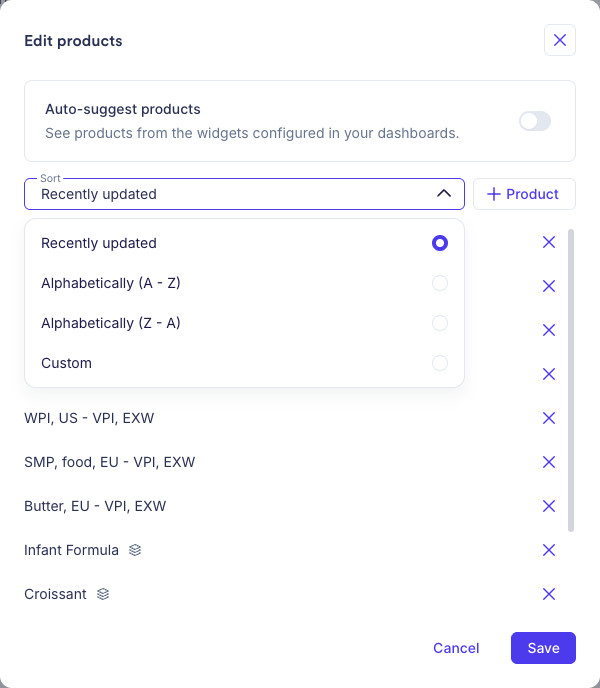
- Sort the Your prices, Your futures and Your forward prices cards by Recently updated, A to Z, Z to A or Custom. With Custom, drag products into place or send one straight to the top, mixing cost models and commodities in any order.
- Sorting works with auto-suggest on or off, and turning auto-suggest off now keeps the products the card was already showing.
Why this matters
The cards used to put the most recently updated product first, so an important price could end up on page 3. Now the prices and cost models you check most sit together at the top of the card.
How to access
Live in the web app for all Vesper users. On your Homefeed, open Edit products on a card: add a cost model with Product, or change the order under Sort. Auto-suggest does not add cost models, so pick them yourself. Questions? Email support@vespertool.com.